
Get Started with Bitnami Applications in the AWS Marketplace
Introduction
Amazon Web Services or AWS is one of the world’s most popular and reliable cloud computing platforms. It includes a wide range of compute, storage and content delivery, database, mobile and other services, and it’s a great way to host simple websites as well as complex web or mobile applications in the cloud.
If you’re new to the cloud, the easiest way to get started with Amazon Web Services is with Bitnami. Bitnami provides pre-packaged application images for AWS Cloud servers, so that you can get productive with your new server immediately. You can access and launch these images in three ways:
-
Through the AWS Marketplace, Amazon’s online application library;
-
Through the AWS Console, Amazon’s online dashboard for AWS users;
-
Through Amazon Lightsail, Amazon’s virtual private servers.
In this tutorial, I’ll walk you, step by step, through the process of using the AWS Marketplace to create and provision a new AWS Cloud server. And since AWS offers a Free Tier valid for 12 months, you’ll have plenty of time to experiment with your server and Bitnami images without worrying about being billed for usage.
TIP: You can also learn about launching servers with the AWS Console or Amazon Lightsail.
Overview
If you’re interested in creating a personal or small business blog, chances are that you’re going to use WordPress. WordPress is one of the most popular blogging platforms in the world, used on over 60 million websites (according to Wikipedia). And it is not hard to see why: WordPress is very easy to use, comes with thousands of extensions and themes, is completely free, and is open source.
In this tutorial, I’ll launch a cloud server with the Bitnami WordPress Stack, which gives you a pre-configured WordPress blog that you can start using right way. But WordPress is just an example: there are hundreds of other Bitnami applications to choose from, and they’re all equally easy to set up.
Here are the steps you’ll follow in this tutorial:
- Register with Amazon Web Services (AWS)
- Generate an AWS Access Key and Secret
- Deploy WordPress on an AWS cloud server
- Obtain WordPress credentials
- Log in and start using WordPress
The next sections will walk you through these steps in detail.
Step 1: Register with Amazon Web Services (AWS)
: At the end of this step, you will have signed up for the Amazon Web Services free tier. If you already have an Amazon Web Services account, you may skip this step.
You will need an existing Amazon account to log in and sign up. To create it, follow these steps:
-
Browse to http://aws.amazon.com and click the “Create an AWS account” button at the top of the page.
-
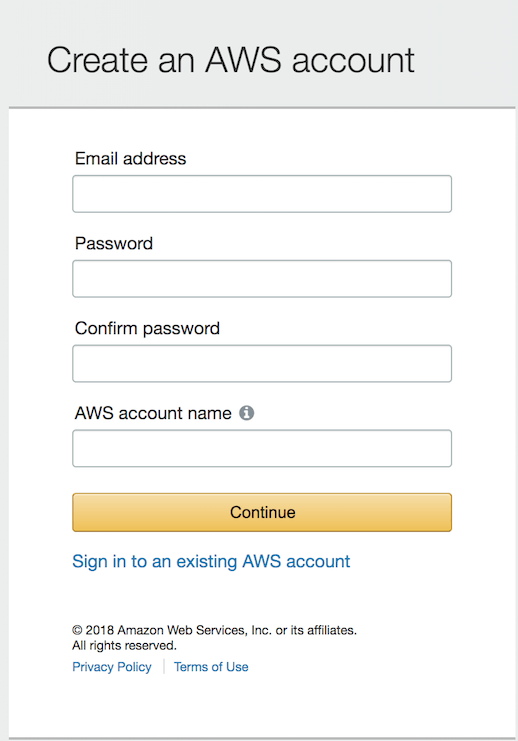
In the resulting page, enter an email address, a password, and an AWS account name. Then, click “Continue” to start the registration process.
-
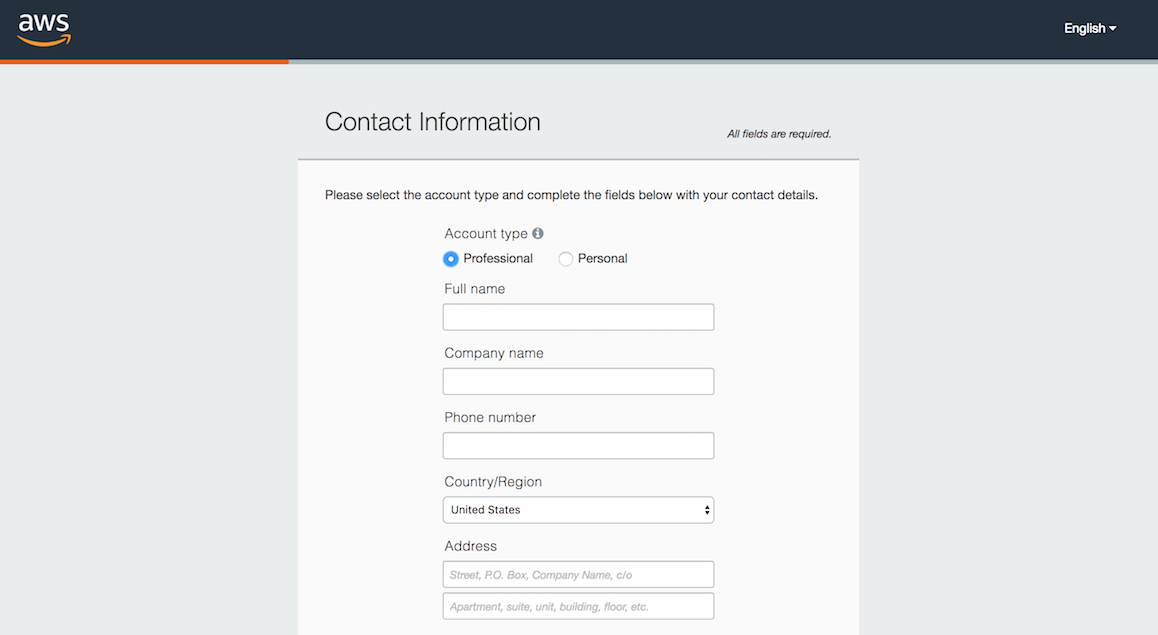
Once you’ve signed in to Amazon, sign up for AWS by selecting the account type and providing some basic contact information and your mobile phone number.
-
Once that’s done, proceed to the next stage by entering your credit card information. Click the “Secure Submit” button to continue with the account creation.
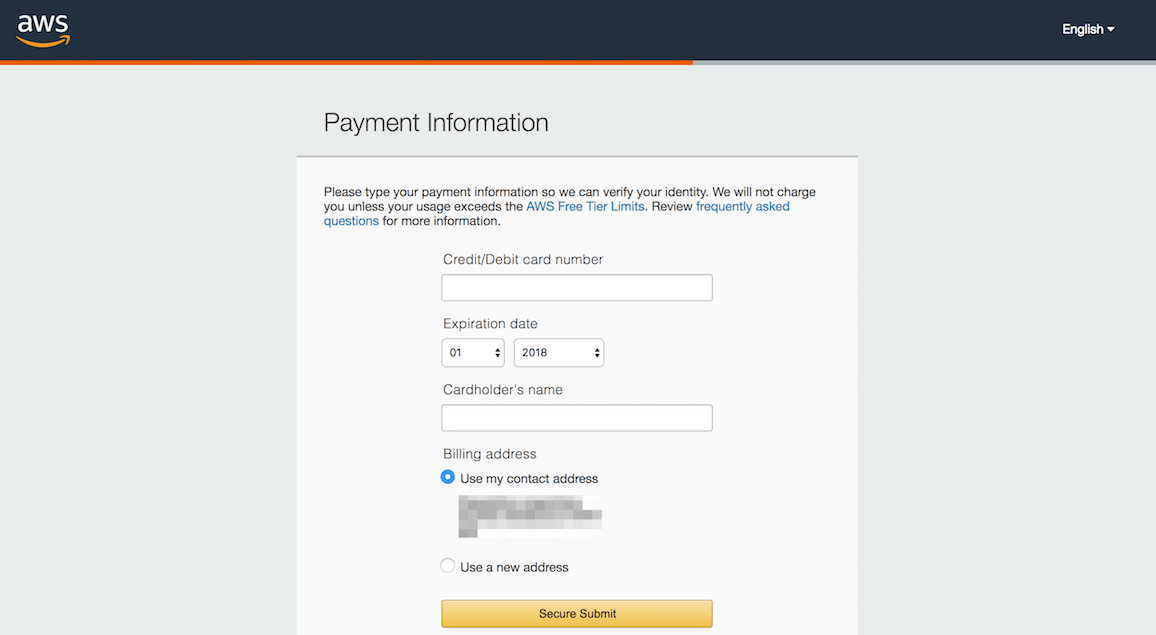
If you’re worried about how much you’ll be billed for services, relax. When you first sign up for AWS, you get automatic access to the AWS Free Tier, which entitles you to 12 months of free usage up to certain limits. This includes 750 hours per month of free usage of Amazon EC2 micro servers, which are just right for development or low-traffic website hosting. So long as your usage falls within the limits of the free tier, your credit card will never be billed. However, Amazon still needs your credit card information for security purposes, to avoid service misuse and to confirm your identity.
IMPORTANT: You should fully understand the limits of the AWS free tier to avoid being unduly charged for service usage.
-
Amazon will now verify your identity, by making an automated call to your mobile phone number and prompting you to enter the PIN number displayed on the screen.
-
Once your identity is verified, choose the “Basic” support plan (also free) and confirm your account.
NOTE: At this point, make sure that you have subscribed a plan, even if you decide to register for the free tier or “Basic” support plan.
The AWS account registration machine will churn away for a minute or so, and you will then be redirected to a welcome page, which includes a link to the AWS management console. You should also receive an account confirmation email, which tells you that your account is good to go.
Step 2: Generate an AWS key pair
: At the end of this step, you will have generated an SSH key pair to access your EC2 instances. If you already have an SSH key pair for the AWS region you are operating in, you can skip this step.
To generate an SSH key pair, which you will need to log in to your EC2 instances, follow the steps below:
-
Log in to the AWS Console.
-
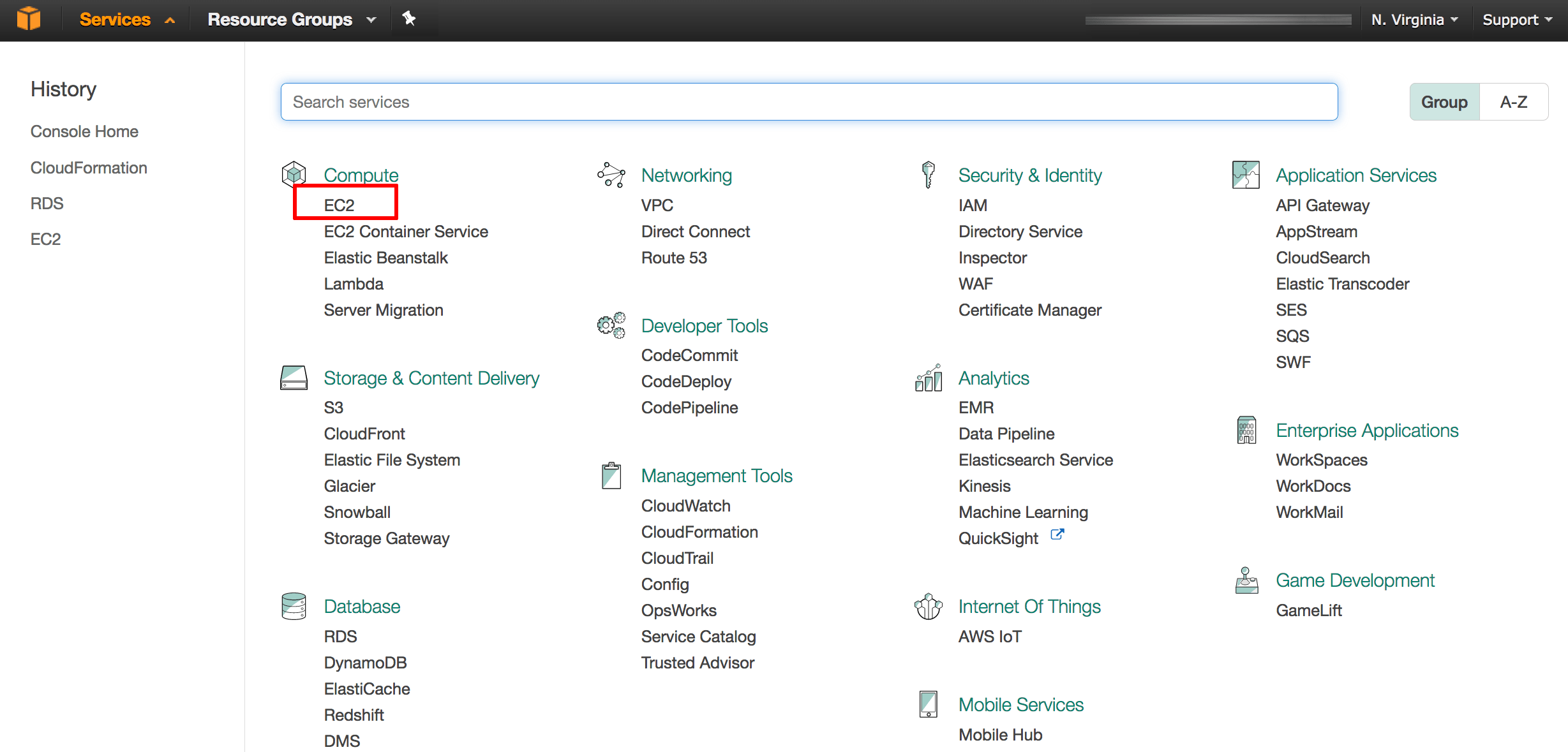
From the Amazon Web Services menu, select the EC2 service.
-
If required, use the region selector in the top right corner to switch to the region where your instance will be launched.
-
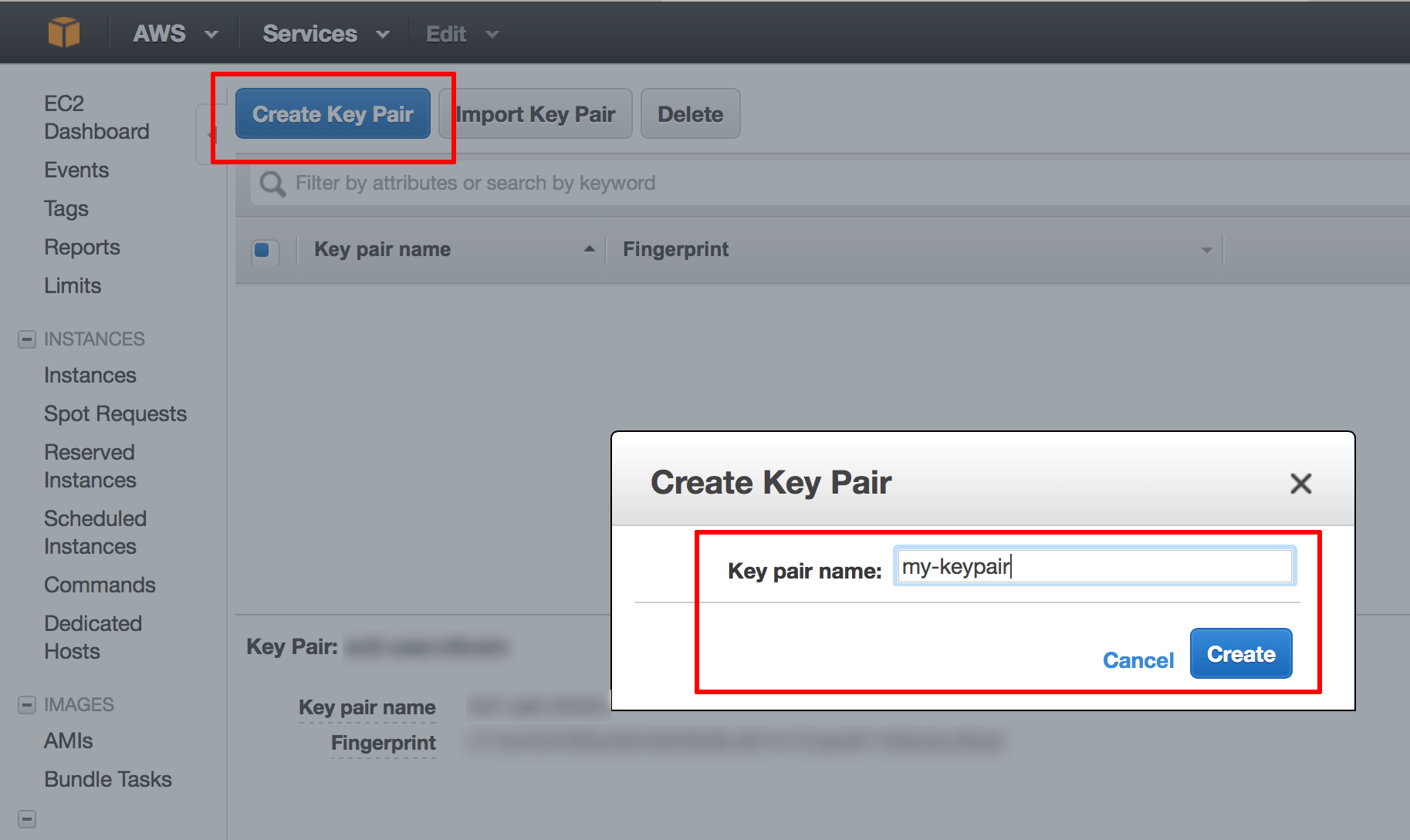
From the Amazon EC2 dashboard, select the “Key Pairs” option in the “Network & Security” menu.
-
Click the “Create Key Pair” button. In the resulting dialog box, enter a name for the new key pair and click the “Create” button.
-
A new key pair, consisting of an SSH public and private key, will be generated. You will be prompted to download the private SSH key to your computer.
NOTE: You will only be able to download the private SSH key once. Store it safely as you will not be able to log in to your AWS servers without it.
Step 3: Deploy WordPress on an AWS cloud server
: At the end of this step, your WordPress blog will be running on an AWS cloud server. |
The next step is to launch a cloud server with WordPress running on it. The AWS Marketplace lets you do this in just a couple of clicks. Follow these steps:
-
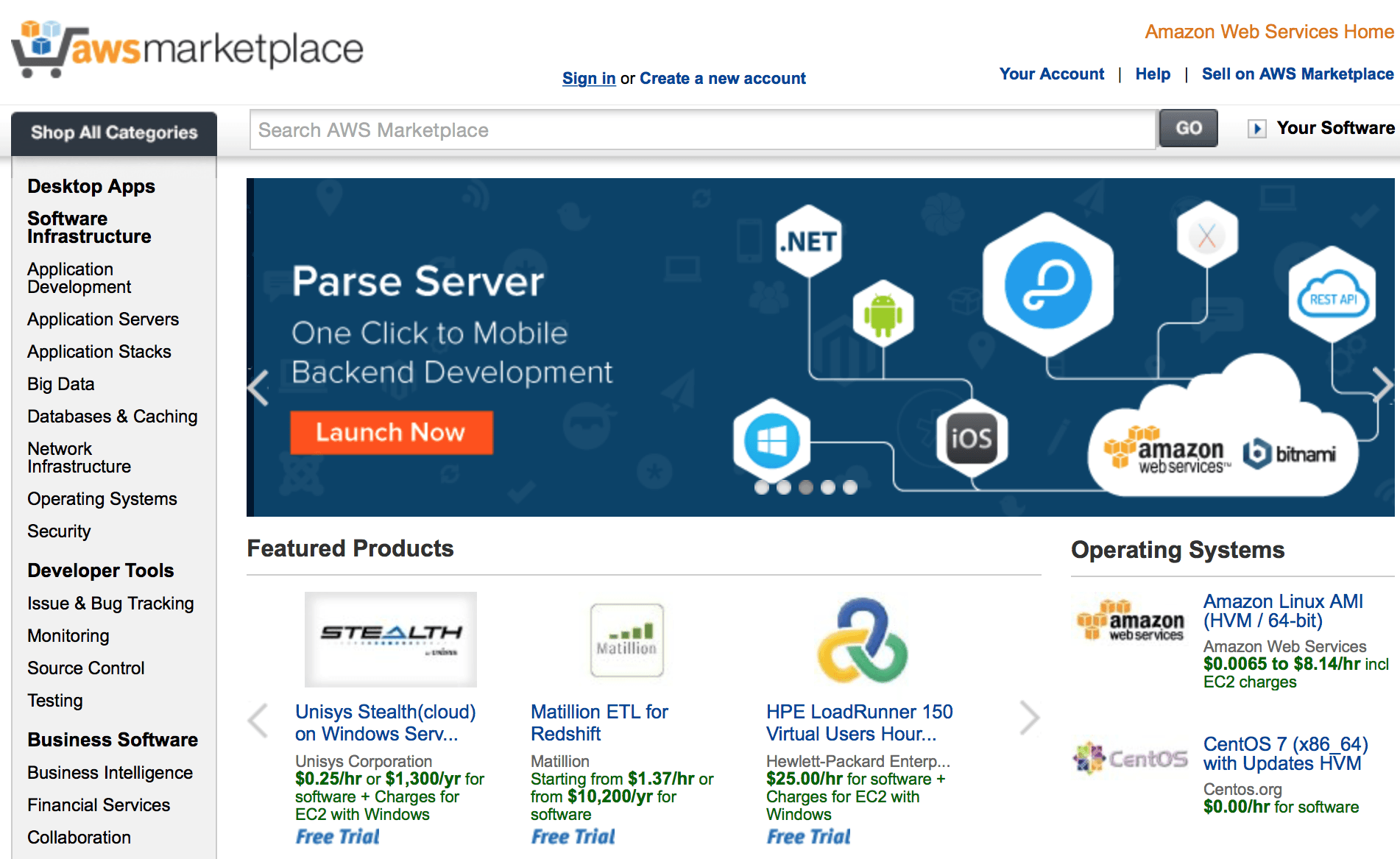
Log in to the AWS Marketplace.
-
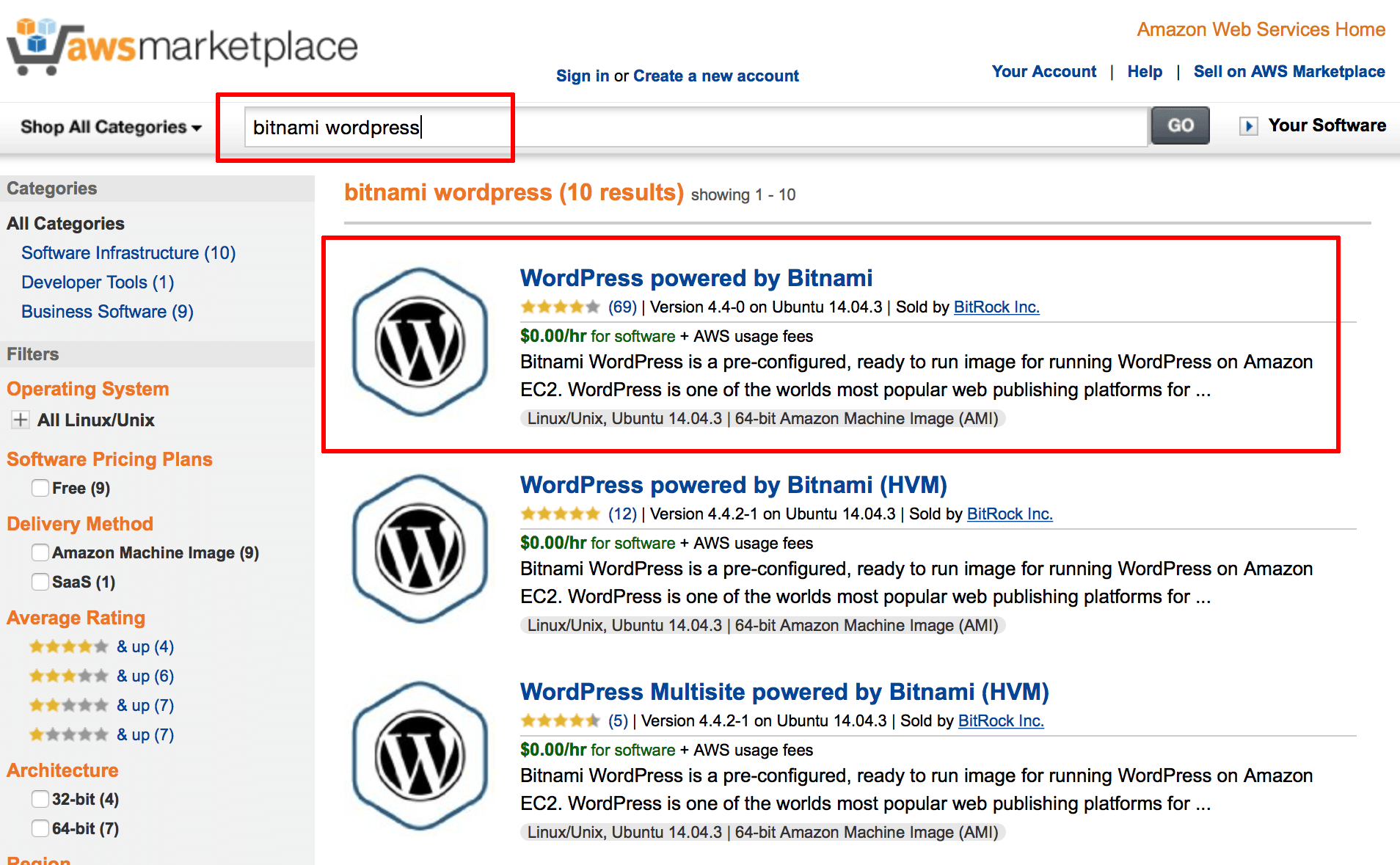
Search for the Bitnami WordPress Stack by entering the search term “bitnami wordpress” in the search bar at the top.
-
Select the stack in the list of search results.
-
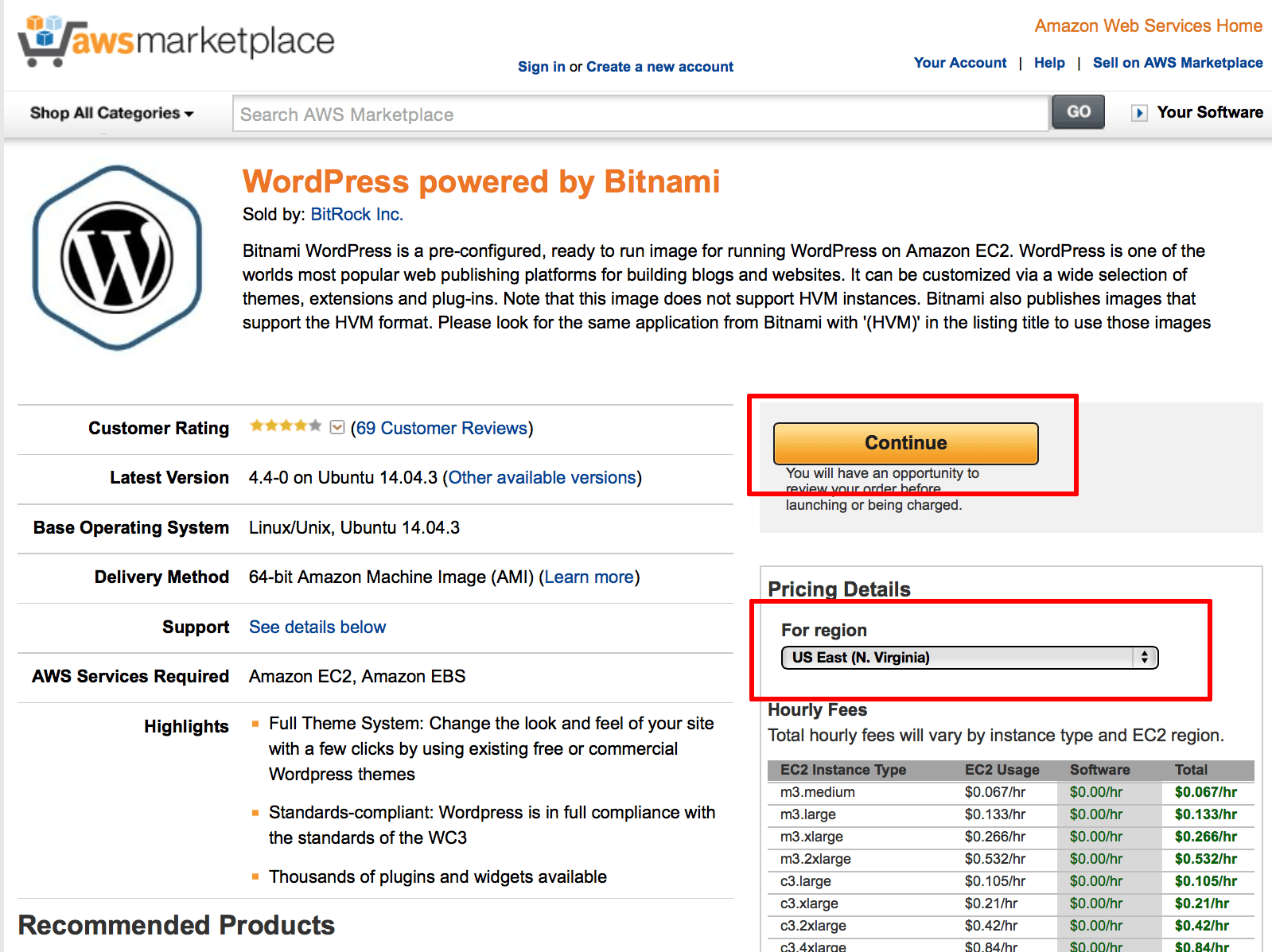
On the resulting detail page, review the description and hourly fees for different server sizes. Select the region in which you wish to launch your server and click “Continue” to proceed.
-
On the resulting page, review the information in the “1-Click Launch” tab. This includes information on the server configuration (CPU, memory and storage), together with your estimated monthly costs. You can choose from a “micro” server, which uses 1 virtual CPU, to a “large” server, which can have up to 40 virtual CPUs. For more information, refer to the AWS pricing sheet.
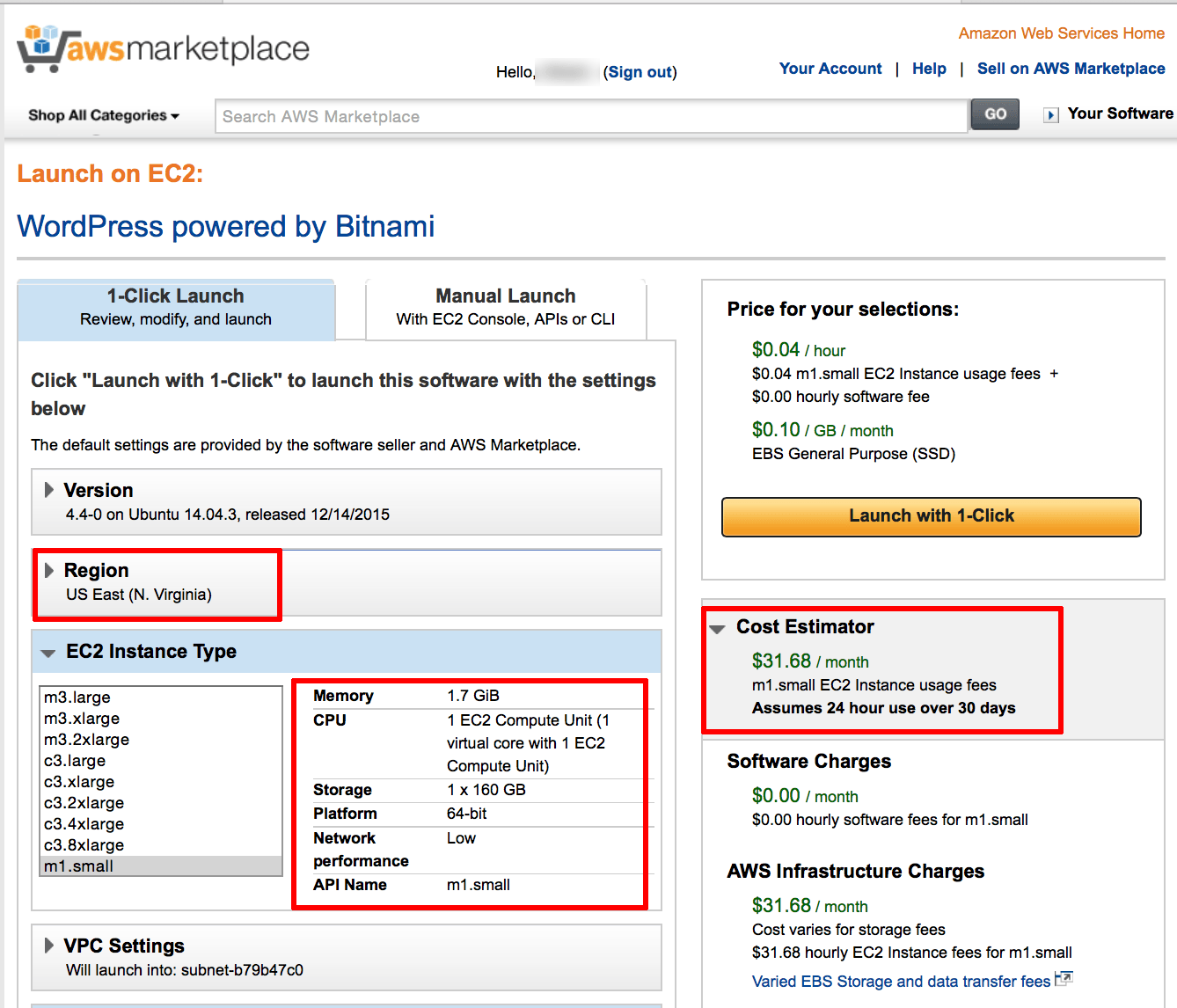
TIP: A “micro” server will work fine for a low-traffic WordPress blog or for WordPress development.
-
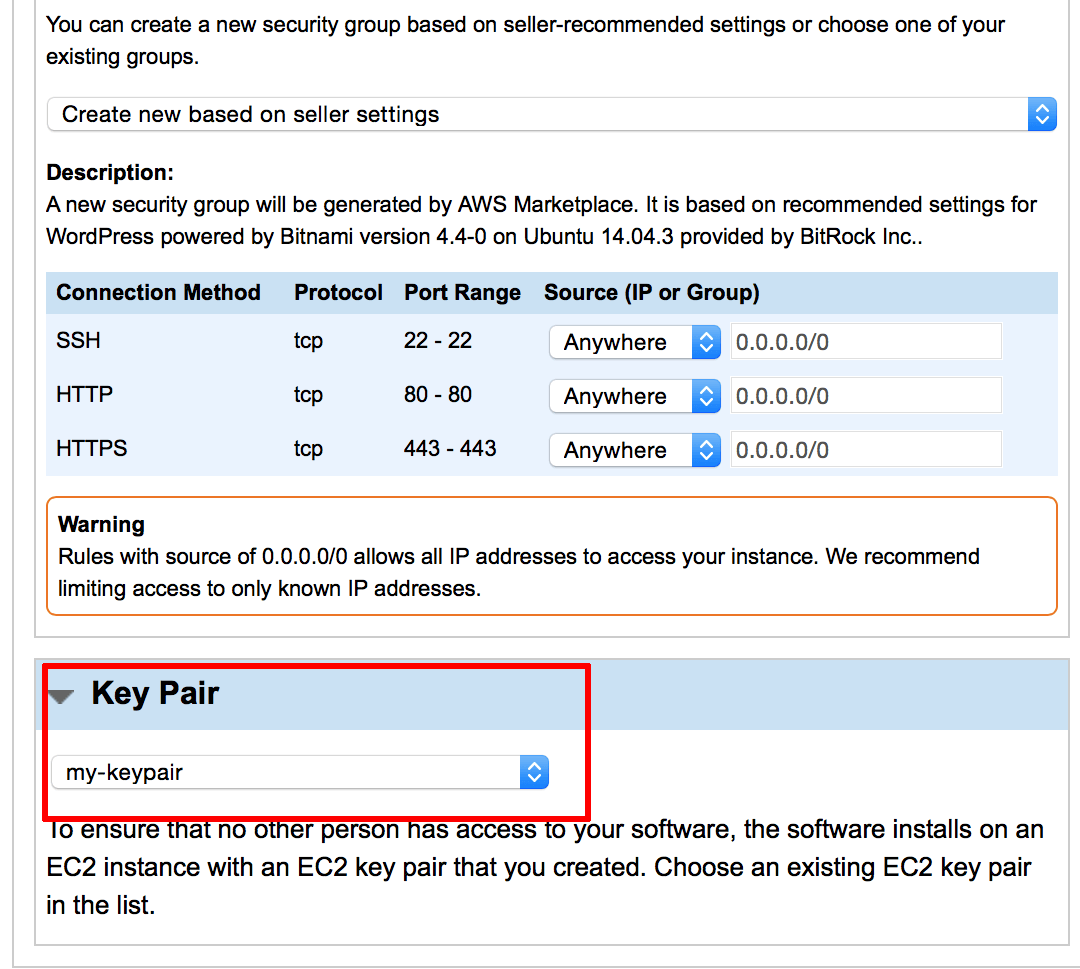
On the same page, verify that the correct key pair (created in Step 2) will be used for the server.
-
Confirm your selection by hitting the “Launch with 1-Click” button.
The AWS Marketplace will now begin spinning up the new server.
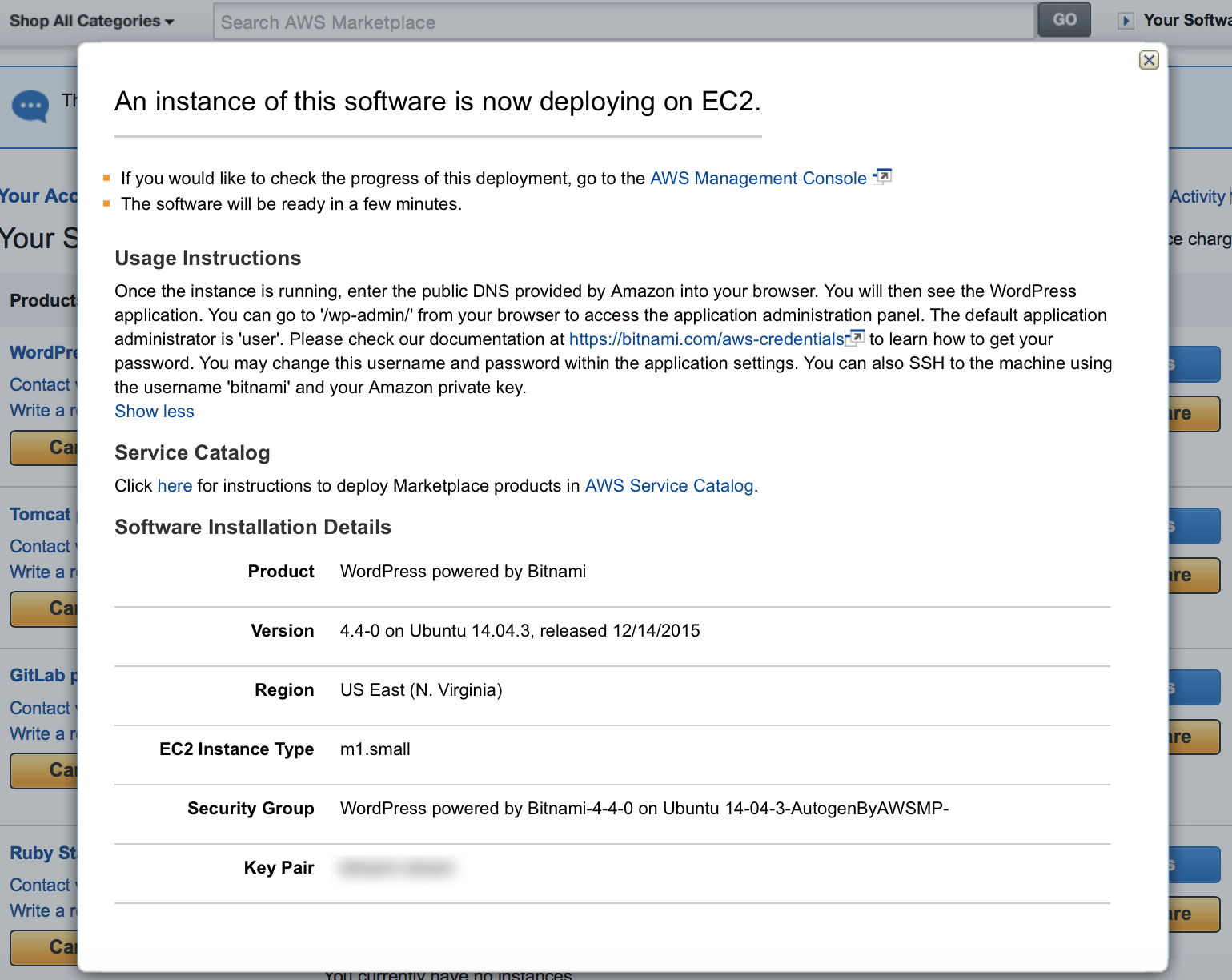
The process usually takes a few minutes, and you can use the EC2 Dashboard to check the status of the server. Once the server has launched, you will be able to obtain its public IP address from the EC2 Dashboard, as shown below:
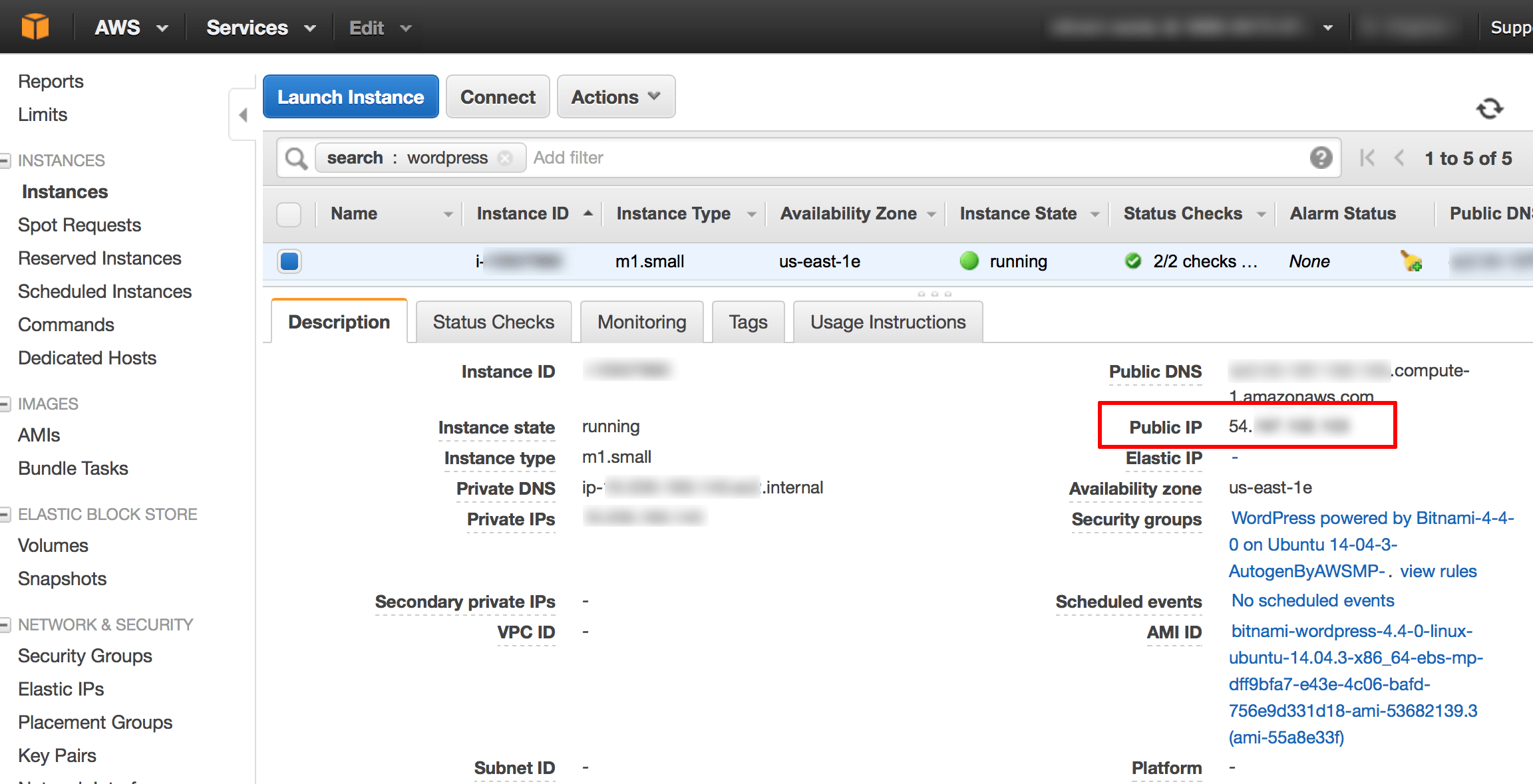
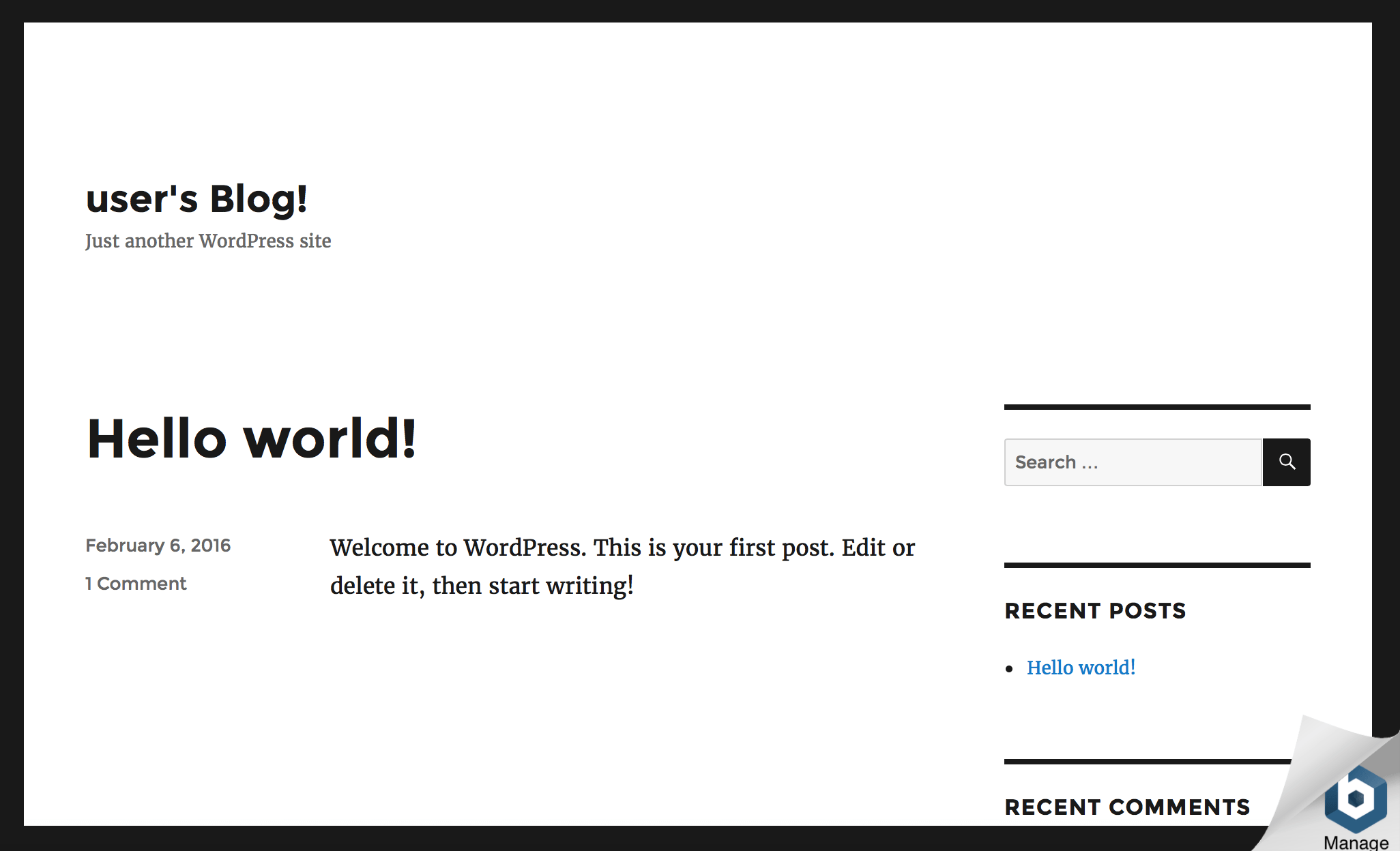
At this point, you should be able to browse to the cloud server, by entering the cloud server IP address directly into your browser’s address bar. You should now see your WordPress blog’s home page with a sample post, as shown below.
Step 4: Obtain WordPress credentials
: At the end of this step, you will have the credentials needed to access your WordPress blog.
You’re almost done but, before you can log in to WordPress, you need the administrator credentials. Follow these steps:
-
To get the username and administrator password, follow these steps:
-
Log in to the AWS Cloud Console.
-
If required, use the region selector in the top right corner to switch to the region where your instance was launched.
-
In the left navigation bar, select the “Instances -> Instances” menu item.
-
Select your instance in the dashboard.
-
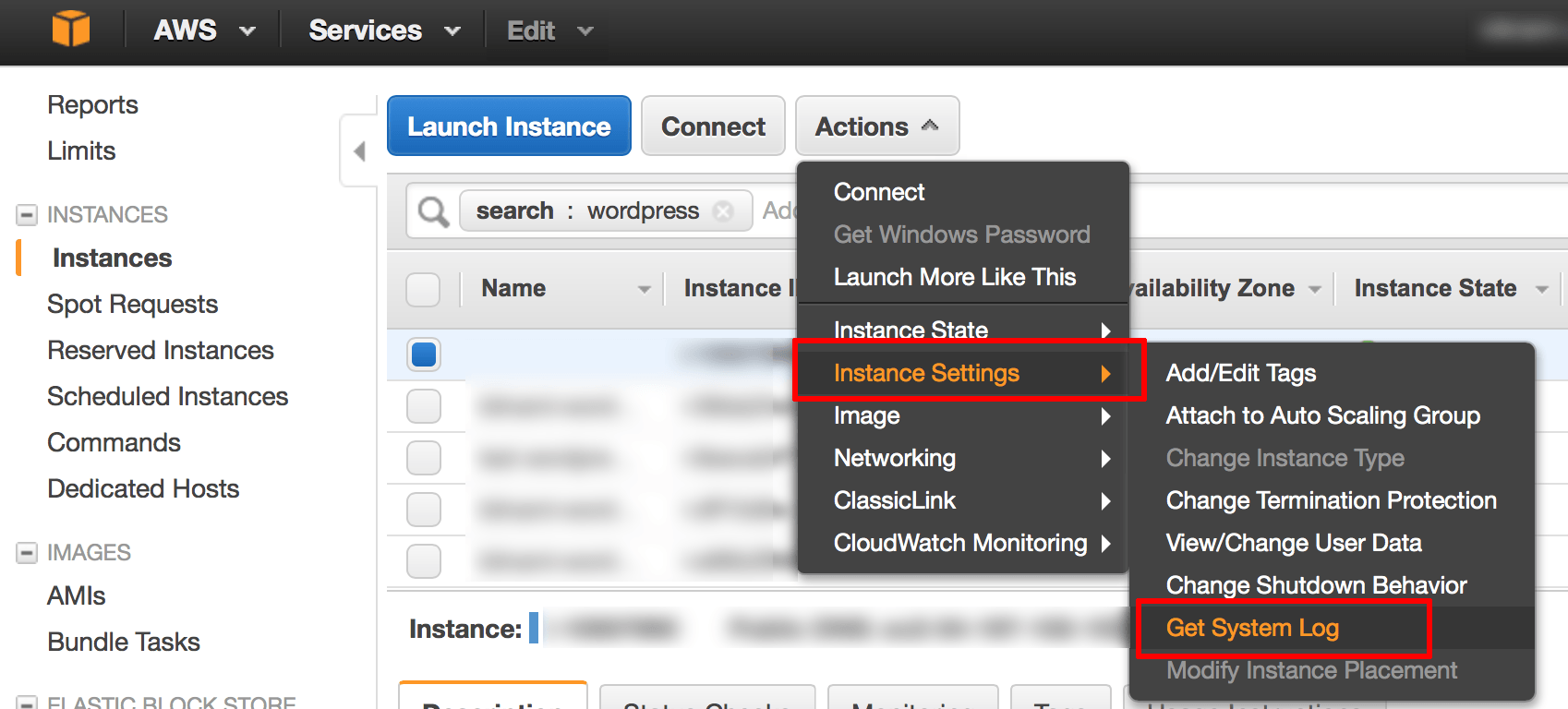
From the “Actions” drop-down menu, select the “Get System Log” menu item.
-
Review the system log until you find the application password.
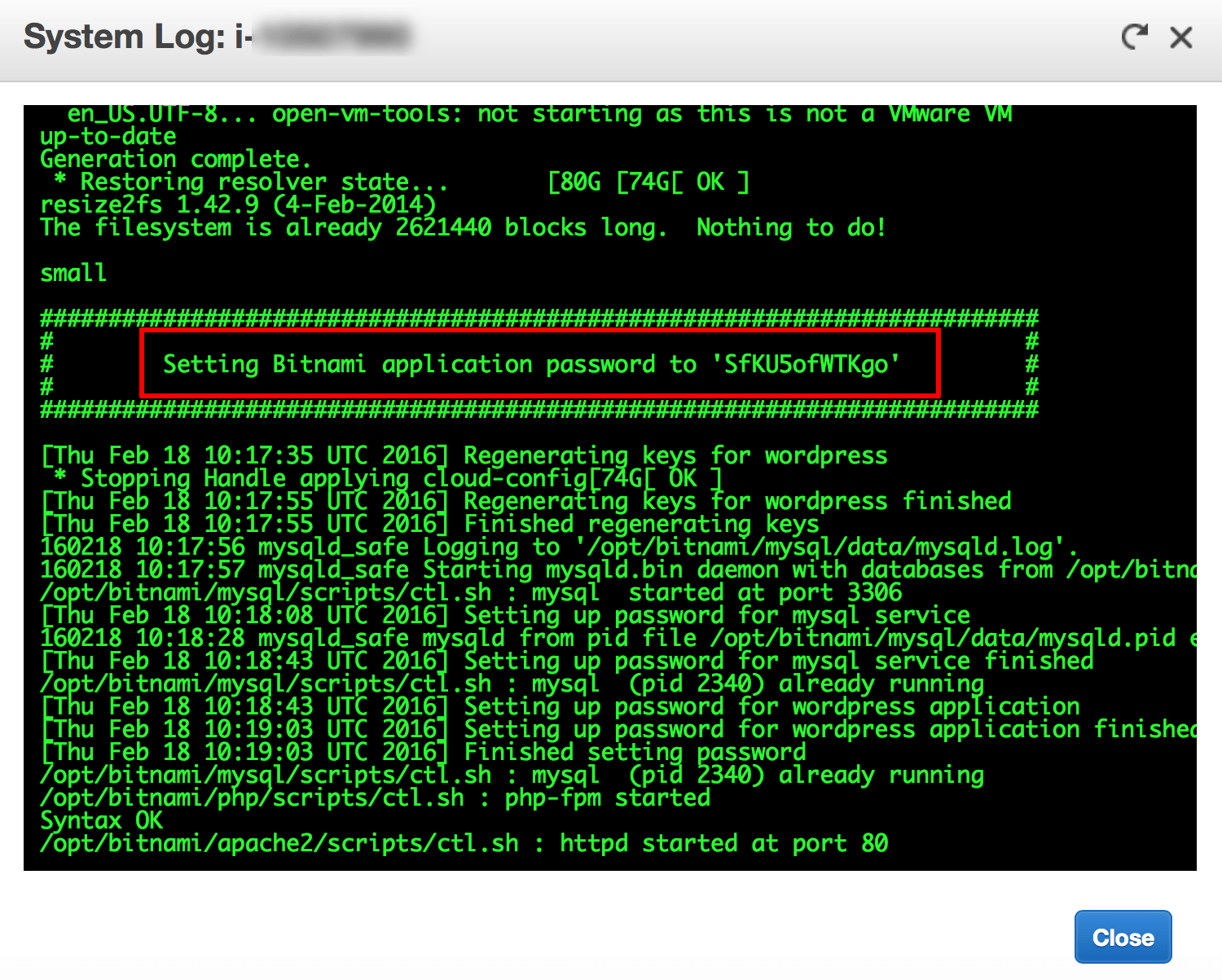
IMPORTANT: This password is only shown the first time you start the image. Please save your password in a safe place. We also recommend changing it to a different value using the WordPress dashboard.
-
TIP: You can also obtain the username and password at any time by checking the bitnami_credentials file as it is described in the FAQ.
Step 5: Log in and start using WordPress
NOTE: At the end of this step, you will have logged in to WordPress and created a new blog post.
To log in to the WordPress dashboard, follow these steps:
-
Browse to the WordPress dashboard, usually at the URL http://SERVER-IP/wp-admin.
-
Log in with the administrator credentials from the previous step.
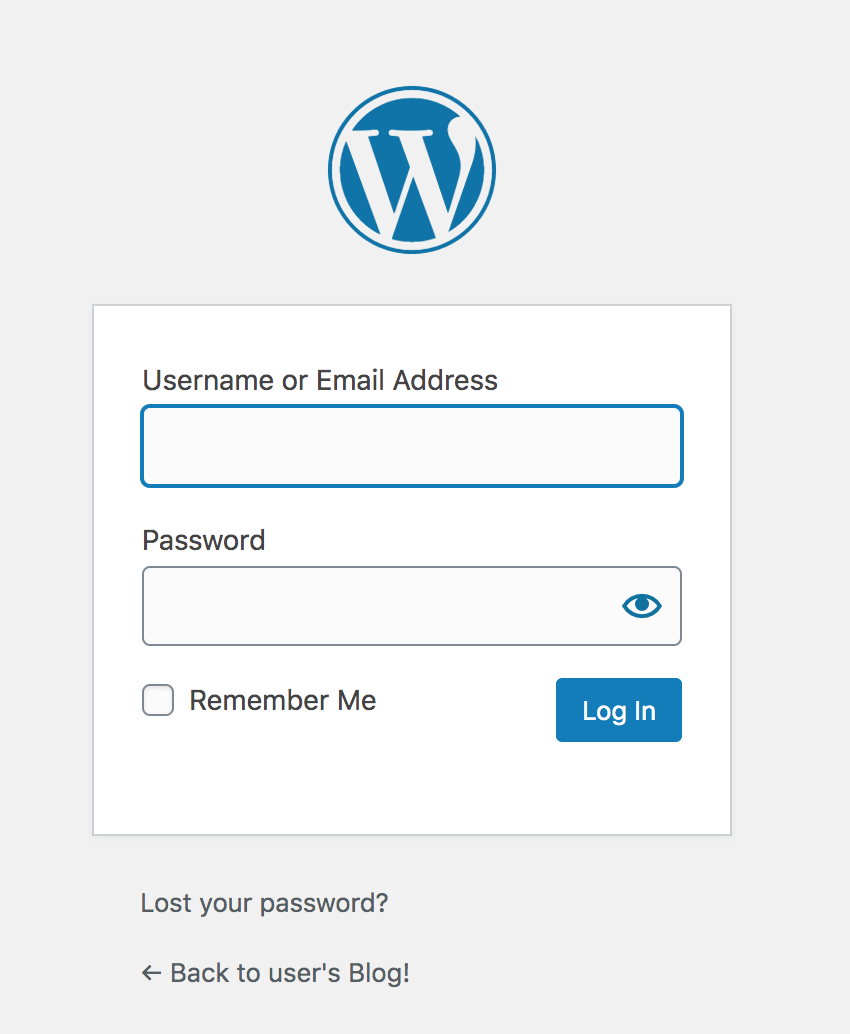
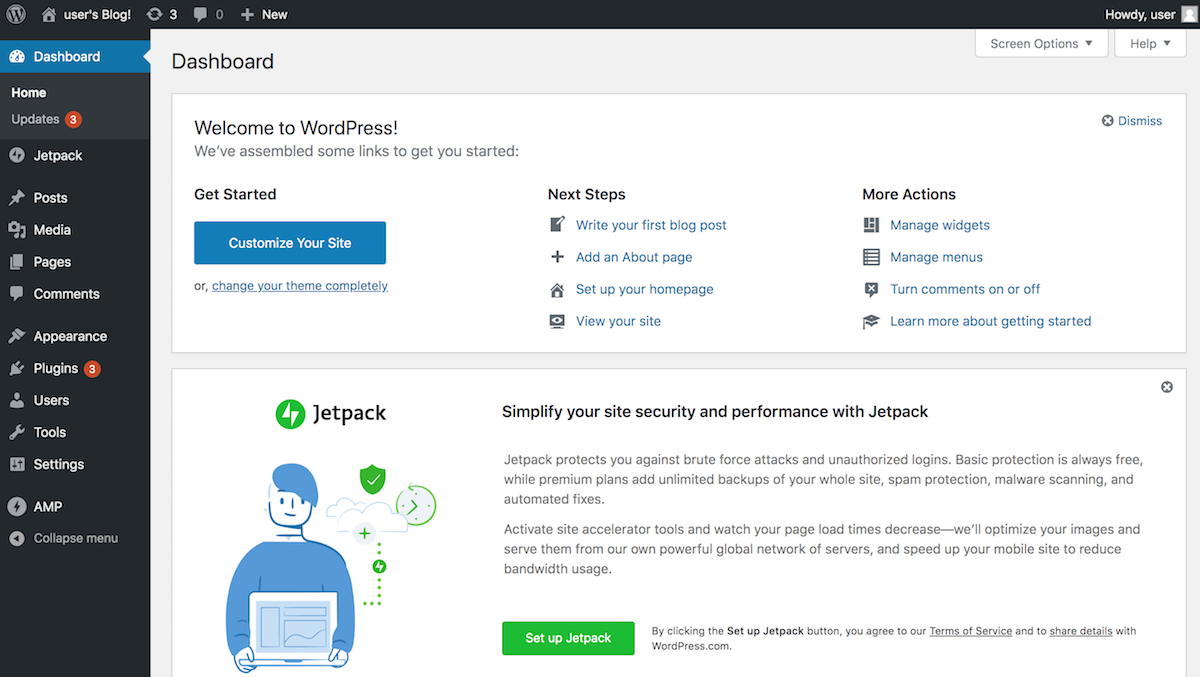
You should now arrive at the WordPress dashboard, which allows you to manage posts, pages and comments; customize your blog with themes and plugins; import and export content; manage navigation menus; add or delete new user accounts; and much more.
Create your first post
You can now add a new post using the following steps:
-
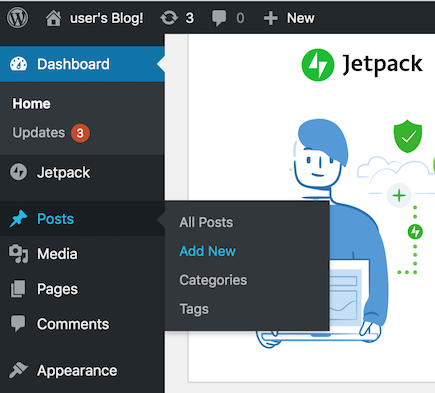
Select the “Posts -> Add New” menu option to create a new post.
-
Enter a title and content for the post. You can use the formatting tools at the top of the content area to format your post and add hyperlinks or images.
-
Optionally, choose the format and category for your post.
-
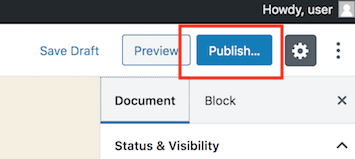
Publish it immediately using the “Publish” button.
And now, when you visit your blog’s front page, you should see your new post.
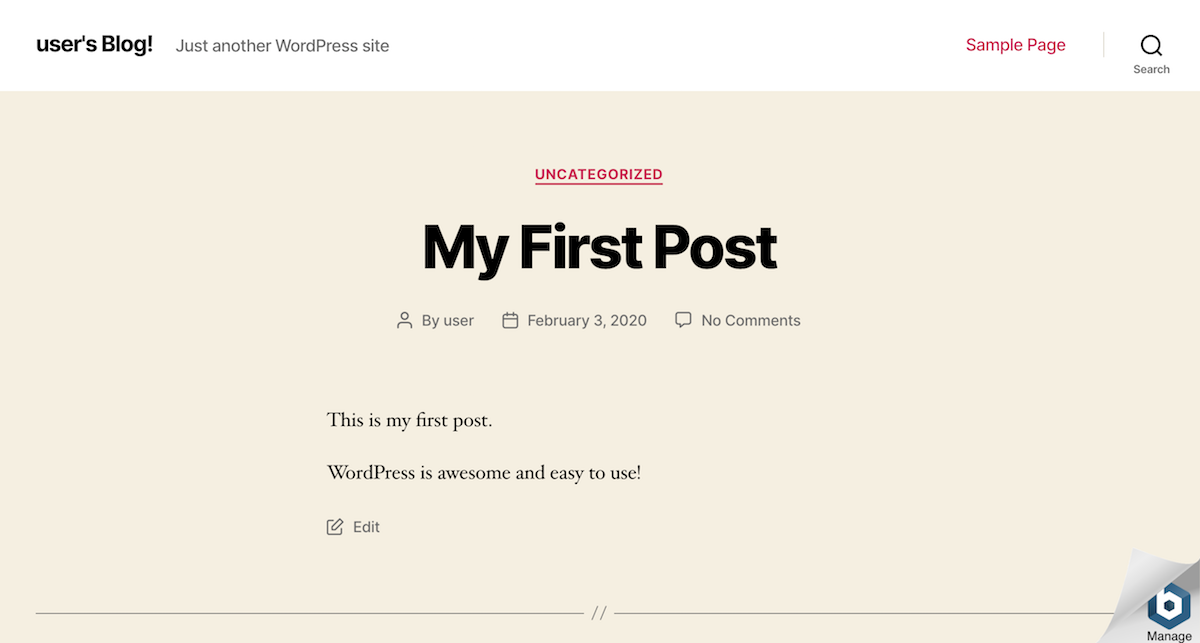
Congratulations! You now have a working, fully-functional WordPress blog in the cloud.
Keep your WordPress installation up-to-date
You can keep your WordPress installation up-to-date with the WordPress update feature. To access this:
-
Log in to WordPress using the administrator account.
-
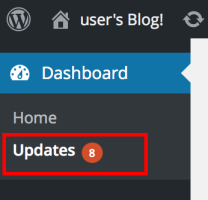
Select the “Dashboard -> Updates” menu item.
-
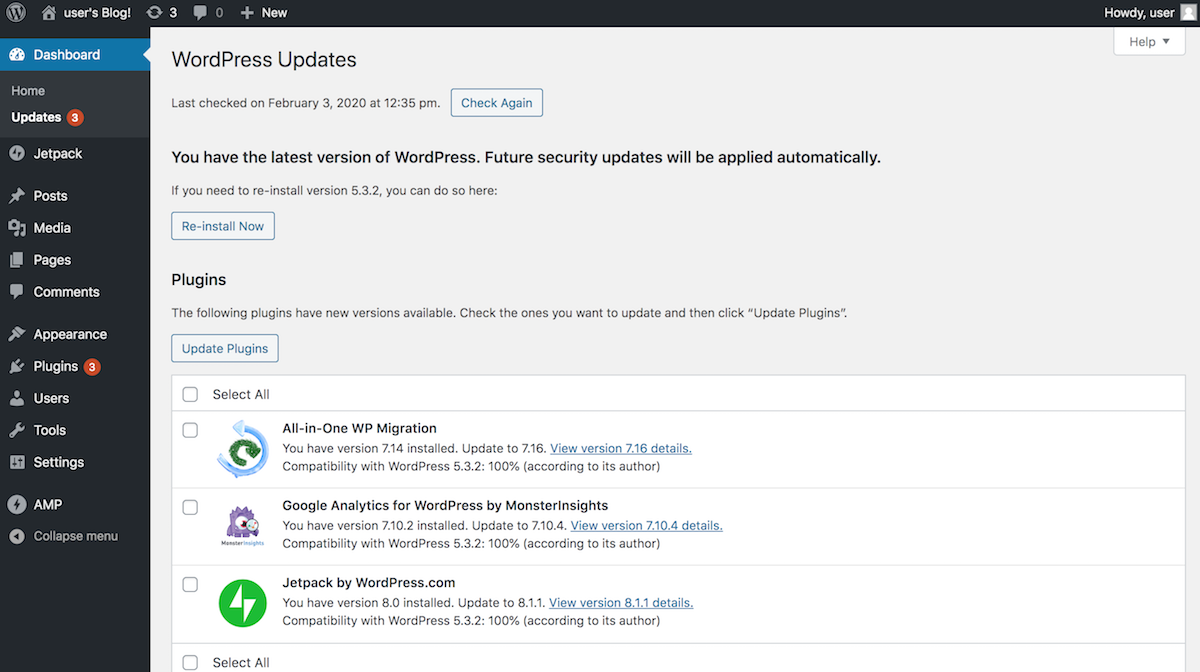
Review the resulting page to see if WordPress needs an update. If an update is available, you can install it by clicking the “Update Now” button. You can also re-install WordPress if needed with the “Re-install Now” button.
Useful links
To learn more about the topics discussed in this tutorial, use the links below: